WordPress & WooCommerce Integration
The RebueText WordPress plugin is a powerful omnichannel routing engine that sends real-time SMS and WhatsApp alerts for WooCommerce order updates and form submissions.
{info} Requirements: You will need an active RebueText account, your API Token, and WordPress 5.0+ to use this plugin.
- Installation
- Step 1: API Configuration
- Step 2: WooCommerce Notifications
- Step 3: Contact Form 7 Integration
- Step 4: Gravity Forms Integration
- Step 5: Viewing Logs
Installation
Method 1: Install from the WordPress Directory (Recommended)
- Log into your WordPress admin dashboard and navigate to Plugins > Add New Plugin.
- In the search bar, type RebueText.
- Click Install Now next to the RebueText plugin.
- Once installed, click Activate.
- Go to RebueText to configure your API credentials and Sender IDs.
Method 2: Manual Upload
- Download the RebueText plugin
.zipfile from the repository. - Go to Plugins > Add New Plugin and click Upload Plugin at the top.
- Select the
.zipfile and click Install Now. - Once installed, click Activate.
- Go to RebueText to configure your API credentials and Sender IDs.
Step 1: API Configuration
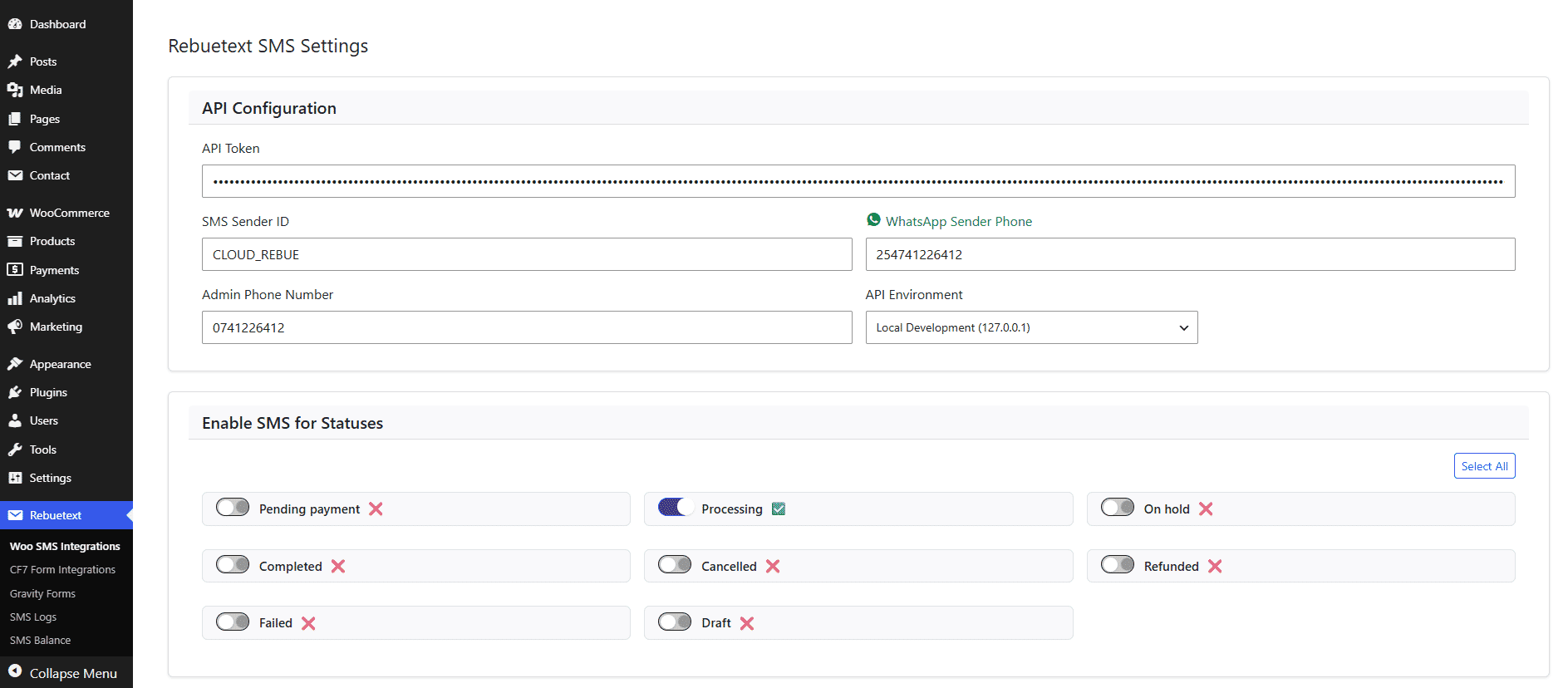
Before you can send messages, you need to connect the plugin to your RebueText account.
- In your WordPress sidebar, click on RebueText.
- Navigate to the RebueText SMS Settings page.
- Enter your API Token, SMS Sender ID, and WhatsApp Sender Phone.
- Select your API Environment (choose Production for live sites).
Step 2: WooCommerce Notifications
Automate order updates to keep your customers informed via SMS or WhatsApp.
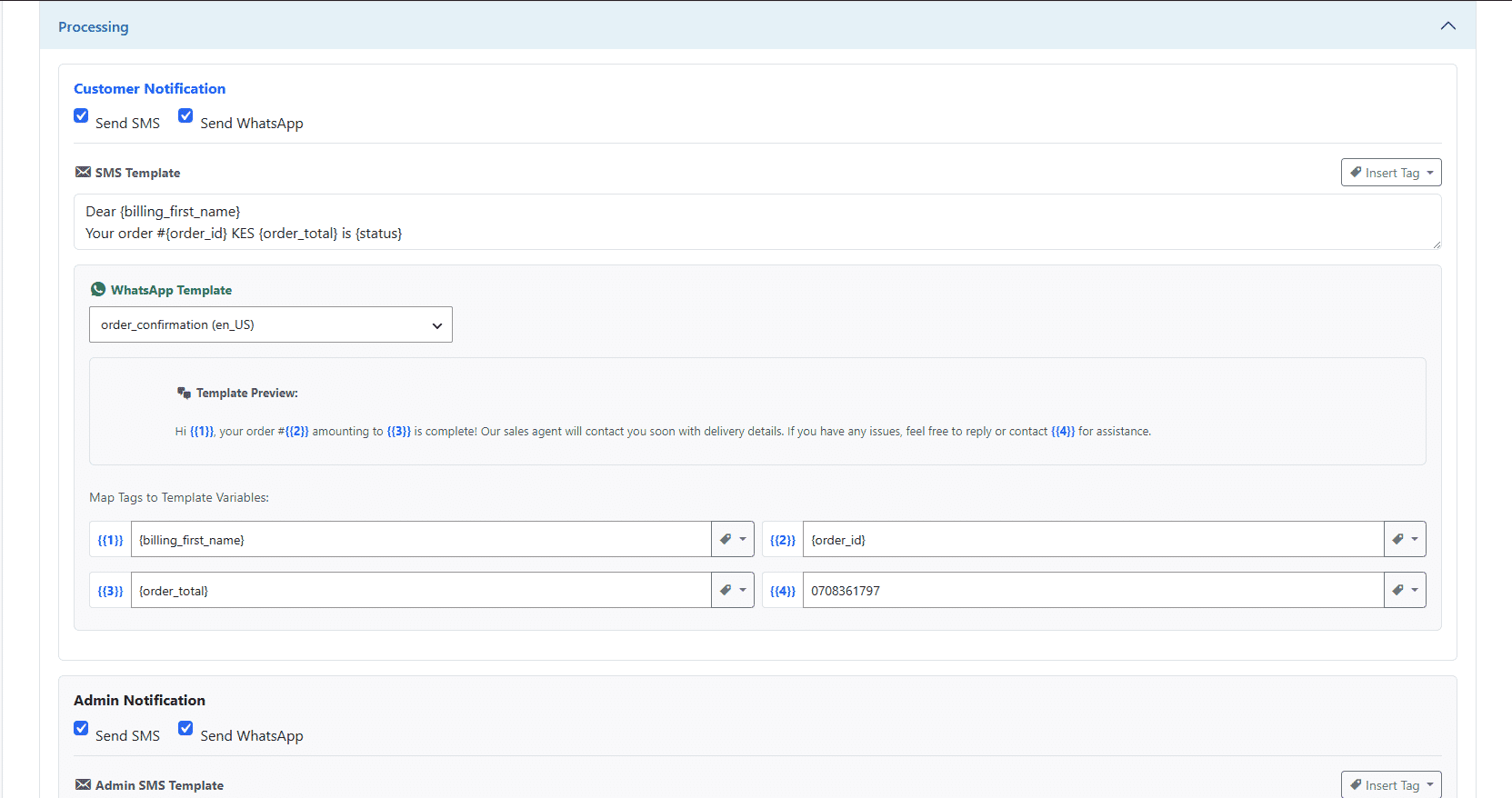
- Go to the WooCommerce tab inside the RebueText plugin menu.
- Toggle the switches to enable notifications for specific order statuses (e.g., Processing, Completed).
- Expand a status to configure the routing. You can check Send SMS, Send WhatsApp, or both!
- For SMS: Use the Insert Tag dropdown to easily inject dynamic WooCommerce variables (like Customer Name or Order Total) into your message body.
- For WhatsApp: Select an approved Meta template from the dropdown, then map the dynamic WooCommerce tags to the corresponding template variables
1,2, etc.
Step 3: Contact Form 7 Integration
Receive instant notifications when a visitor submits a Contact Form 7 form on your website.
- Go to Contact > Contact Forms and edit one of your forms.
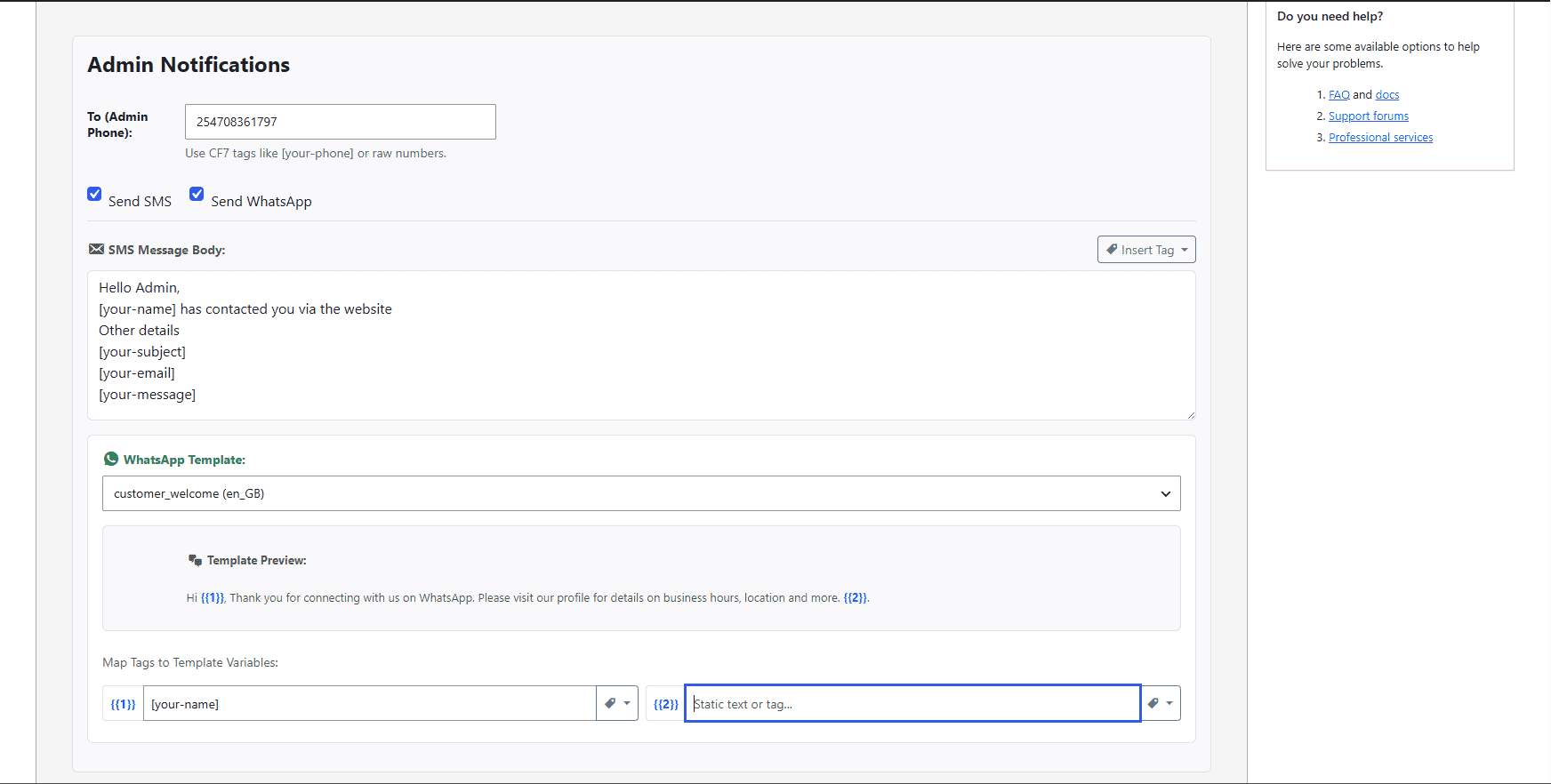
- Click on the new Rebuetext SMS tab.
- Configure the Admin Notifications to alert your team, and the Visitor Notifications to send an auto-reply to the user.
- Use the Insert Tag button to inject native CF7 mail-tags (like
[your-name]) directly into your SMS templates and WhatsApp variable mappings.
Step 4: Gravity Forms Integration
RebueText seamlessly integrates with Gravity Forms to handle complex form submissions.
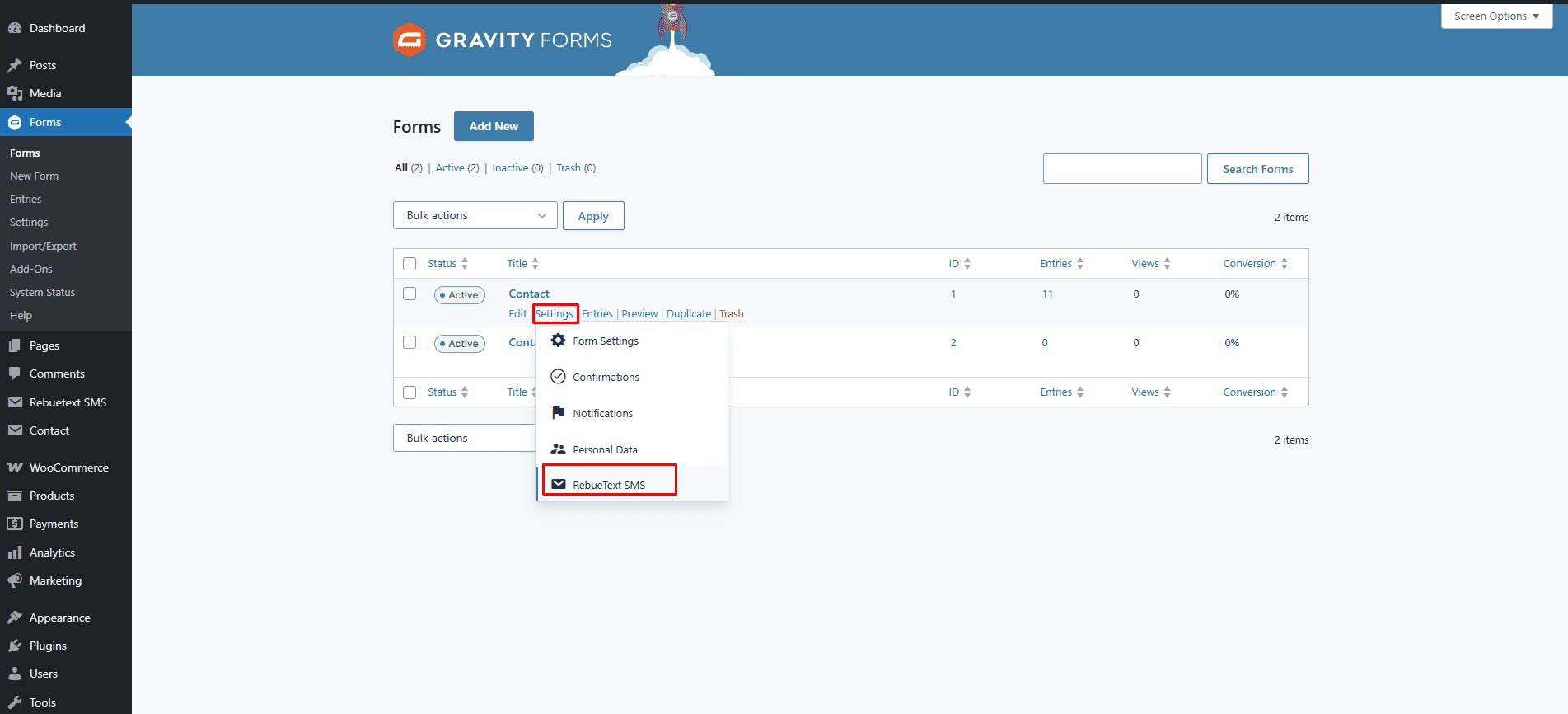
- Go to Forms in your WordPress dashboard and hover over the form you want to edit.
- Hover over Settings and click on RebueText SMS.
- Just like CF7, you can route messages to Admins and Visitors, utilizing Gravity Forms' native merge tags (e.g.,
{Name:1}) in your templates.
Step 5: Viewing Logs
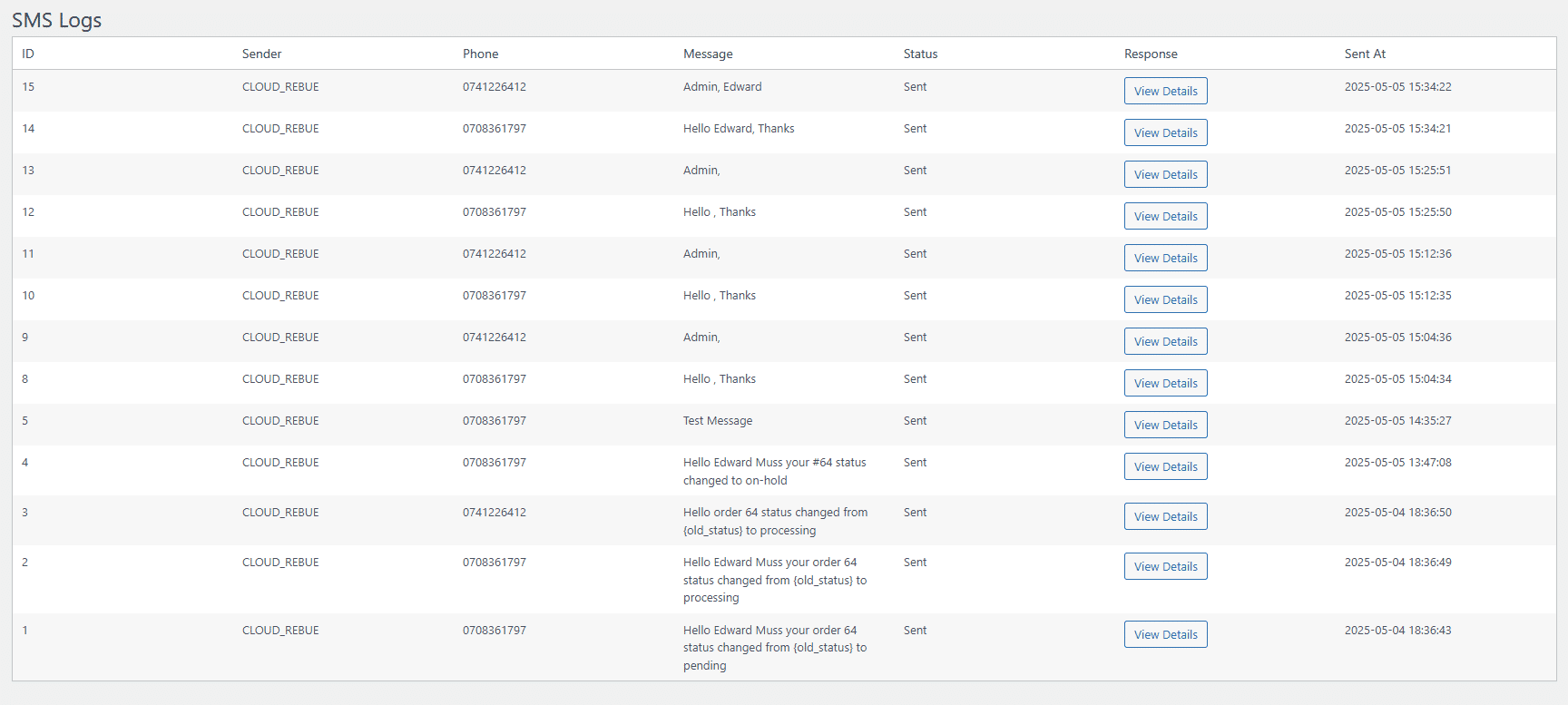
RebueText includes a built-in logging system so you can monitor your messaging traffic and troubleshoot API connections.
- In your WordPress sidebar, go to RebueText > SMS Logs.
- Here, you can view the status of every message attempted by the plugin.
- Click View Details on any log entry to see the exact payload sent to the API and the response received.
{primary} Pro-Tip: If a message fails to send, always check the logs first! It will tell you if the API token was invalid, if the phone number was formatted incorrectly, or if the WhatsApp template variables were missing.